
|
DE FR IT EN ☰ 🖨️ |
|---|
Customer portal instructions | EN
A. First connection to the customer portal
B. Open customer portal via WAPP
C. Request a new password in the customer portal
A. First connection to customer portal
Note: Use only GoogleChrome or Firefox browsers. In the customer portal, you'll find all your contract data, including your WAPP link and your Gold and BSE balance. Once you've logged in, click on all the tabs for an overview. In this section, we show you how to register for the first time on the customer portal.
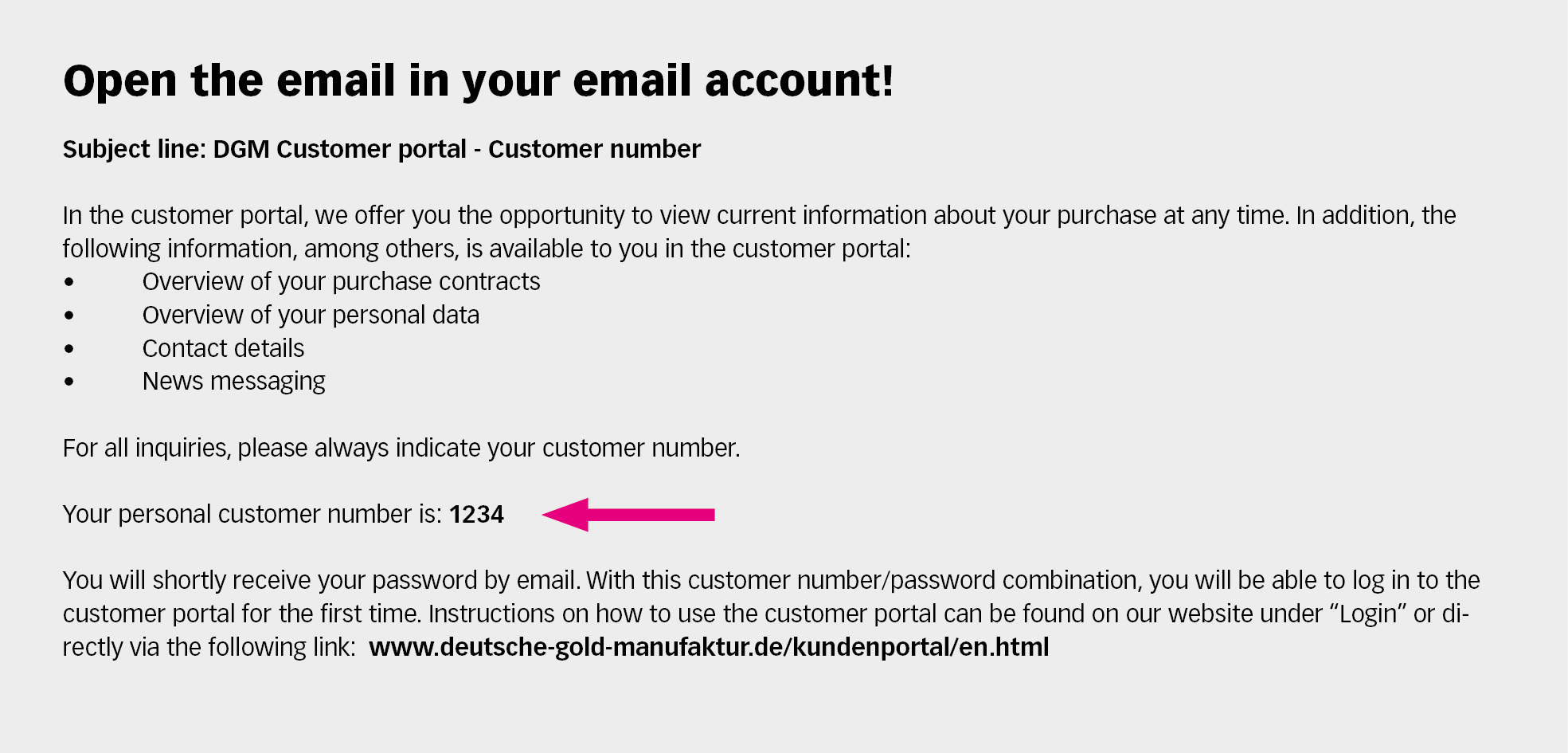
A.1. Customer number
After you have concluded an initial purchase contract, an email with your customer number will be sent to the email address you have provided within two working days. Please open this email in your mailbox and retrieve your customer number. Please save your customer number in a secure folder.
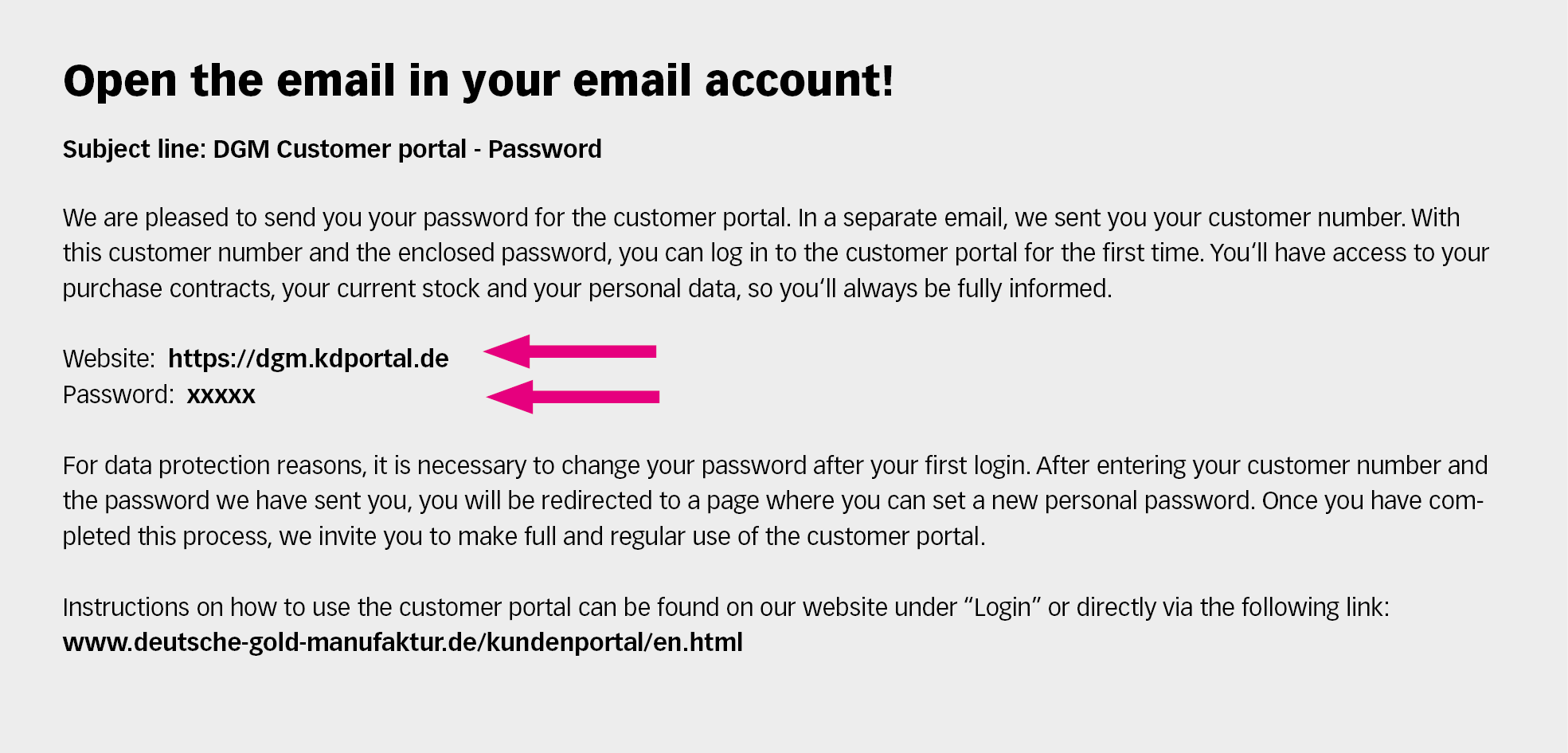
A.2. Password
At the same time, you will receive a second email with the password for your first connection to the customer portal. Please open this email in your mailbox and retrieve the password. Please keep the password handy.
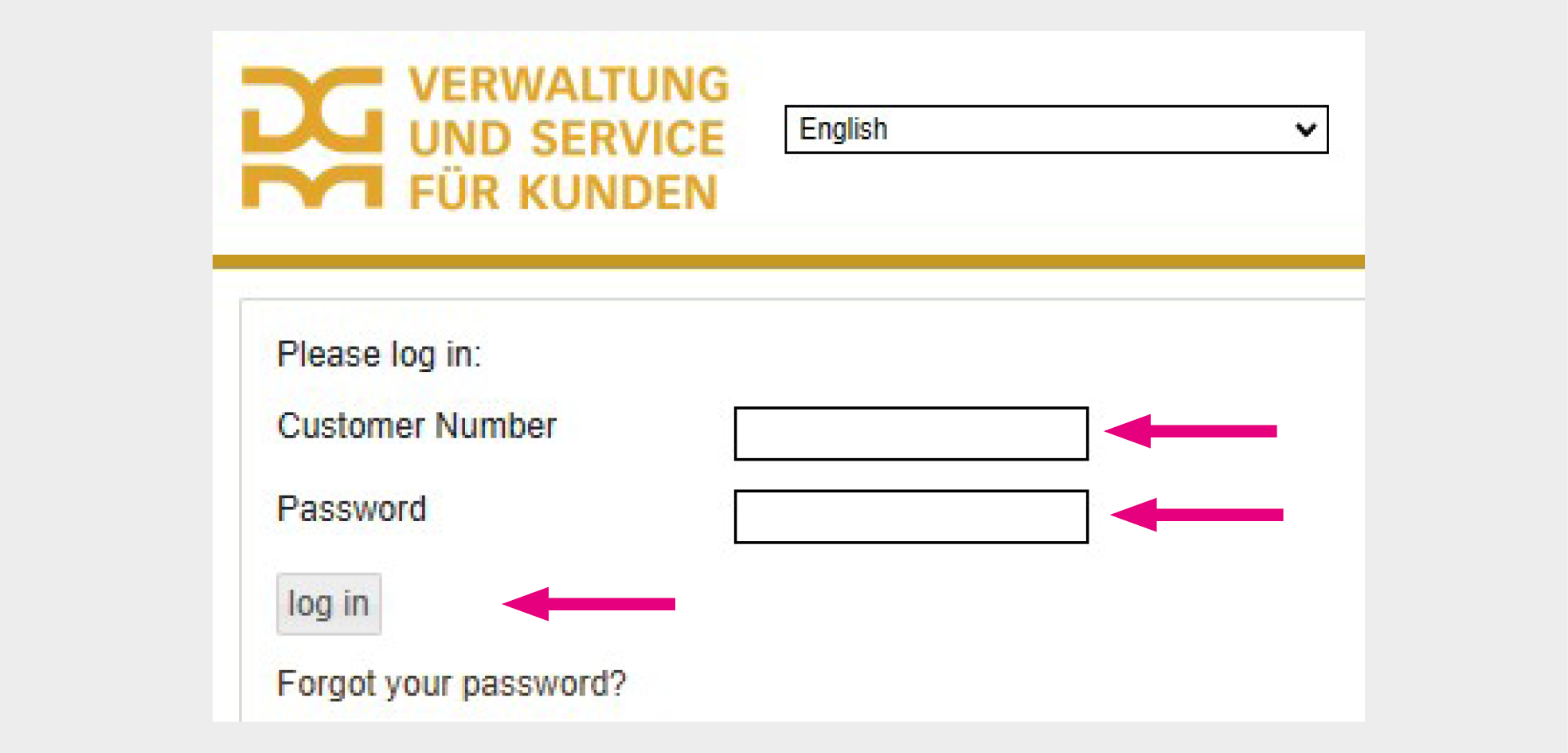
A.3. Open customer portal
Open the customer portal link below and enter your customer number and password. In the top right-hand corner, select the language of your choice.
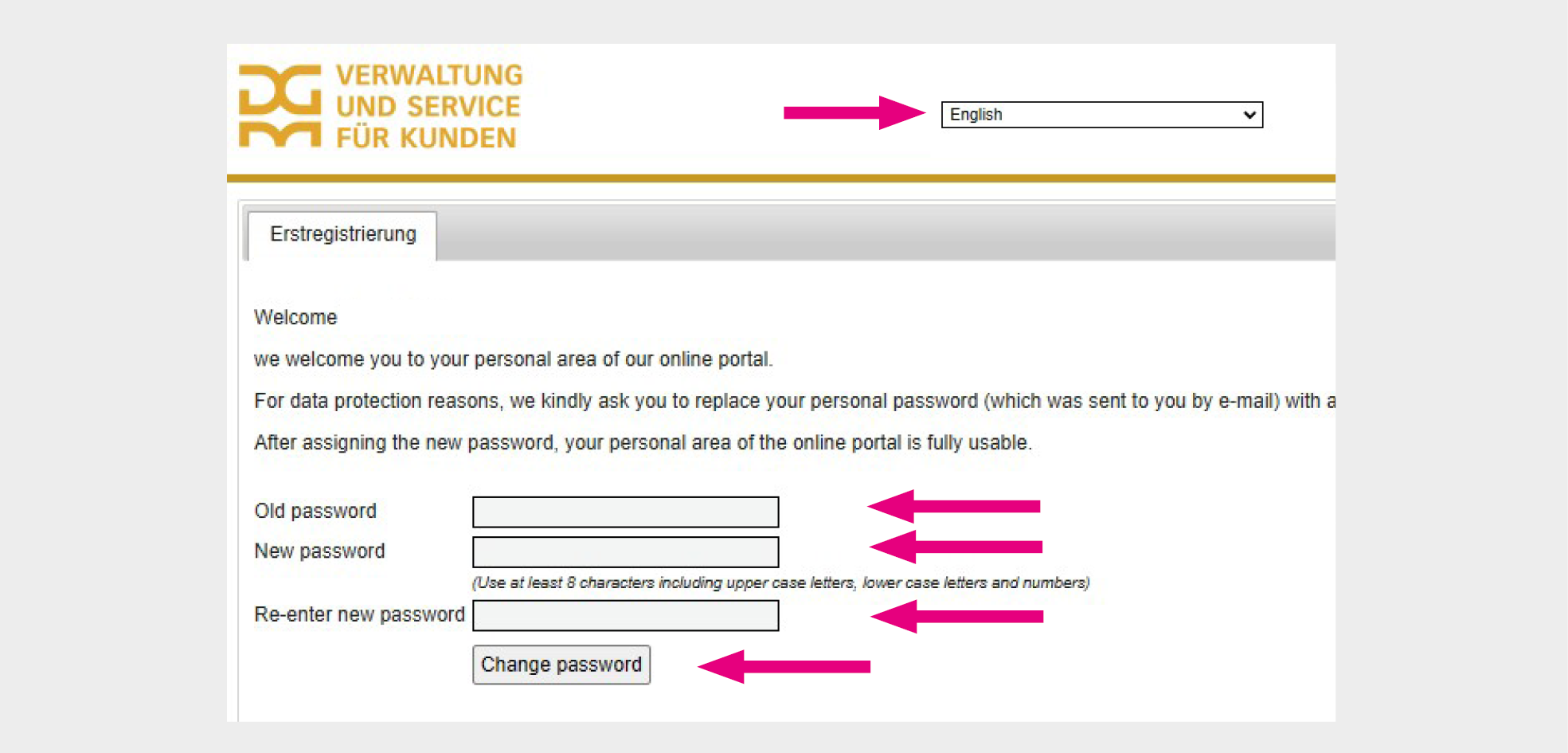
A.4. Create a new password
A new window opens, in which you must enter the password we sent you in the “Previous password” field. Now enter a password of your choice in the two fields “New password” and “Re-enter new password”. The new password must contain at least 8 characters, with upper and lower case letters, numbers and at least one symbol. Then click on “Change password”. Save your new password in a secure folder.
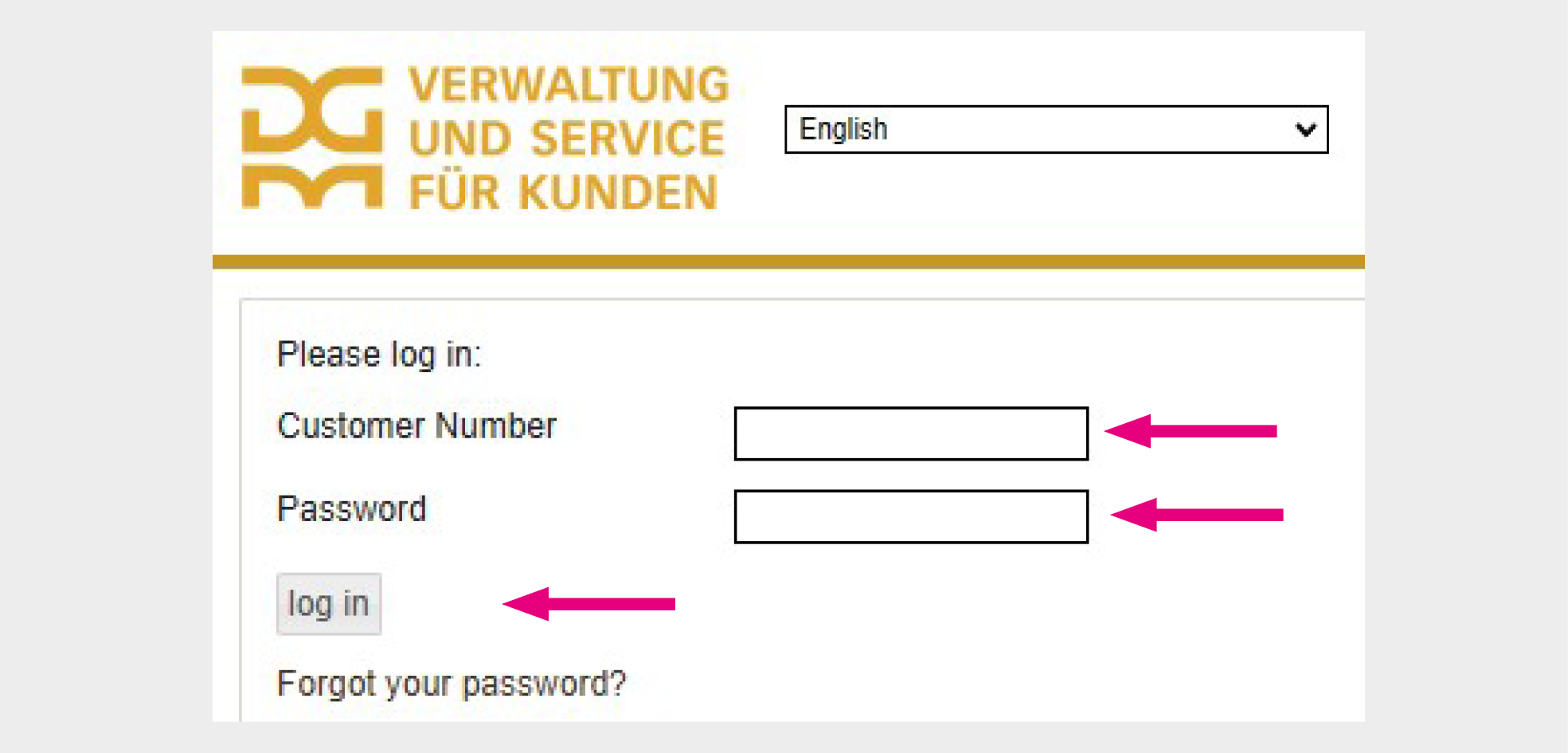
A.5. Open customer portal
Now open the following customer portal link and enter your customer number (see point A.1.) and the password you have created (see point A.4.). In the top right-hand corner, select the language of your choice. Click on “log in”.
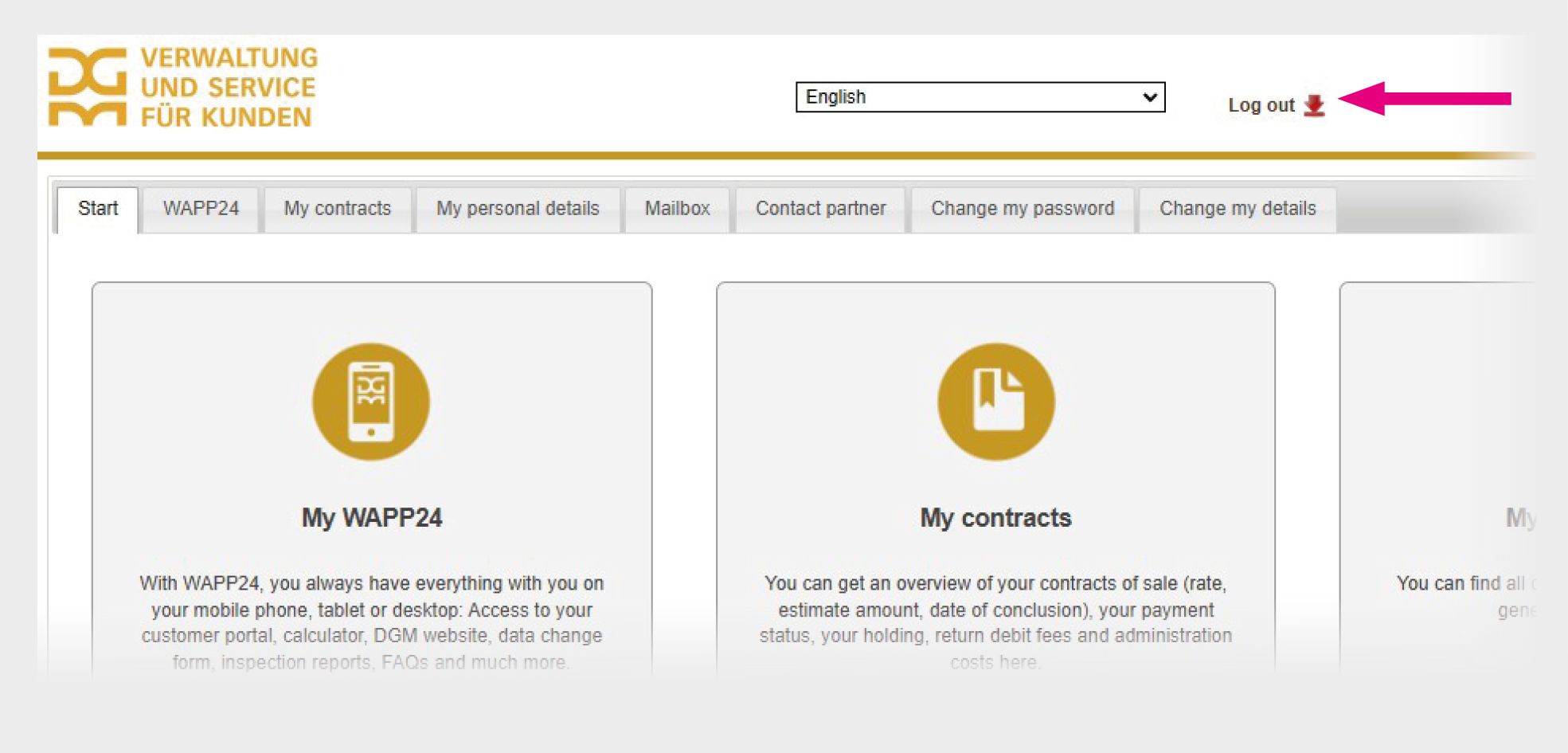
A.6. Internal customer portal
You are now in the internal area of the customer portal. To log out, click on the “Log out” button in the top right-hand corner.
B. Open customer portal via WAPP
Note: WAPP is currently available exclusively in German, and translations are provided by a simultaneous translation system. As a result, translations may not always be displayed correctly. Please select the language you wish to translate into. A multilingual WAPP client is currently under development.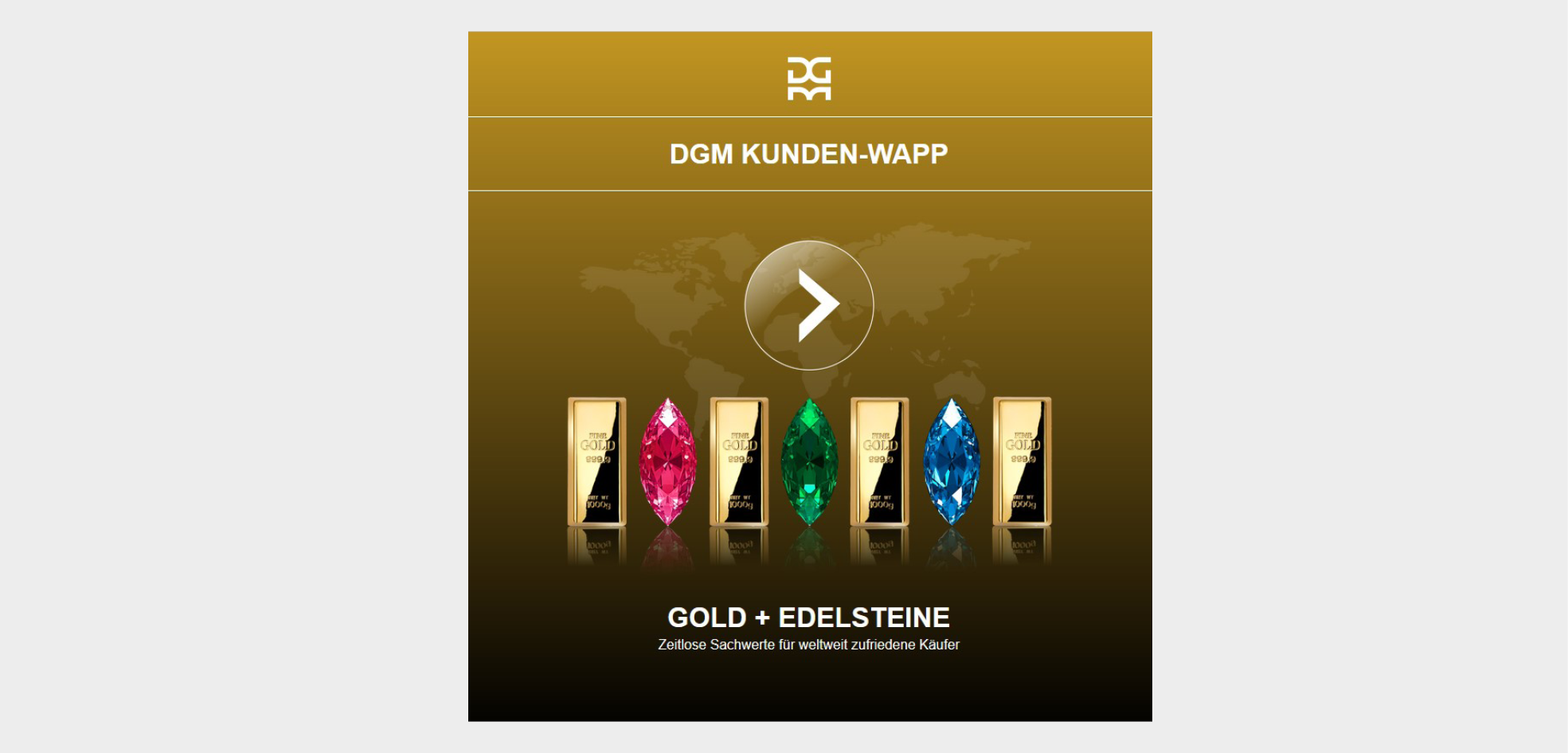
B.1. Opening WAPP
Open the following WAPP link and click on the arrow in the middle.
https://www.wapp24.com/dgm-kunden.html
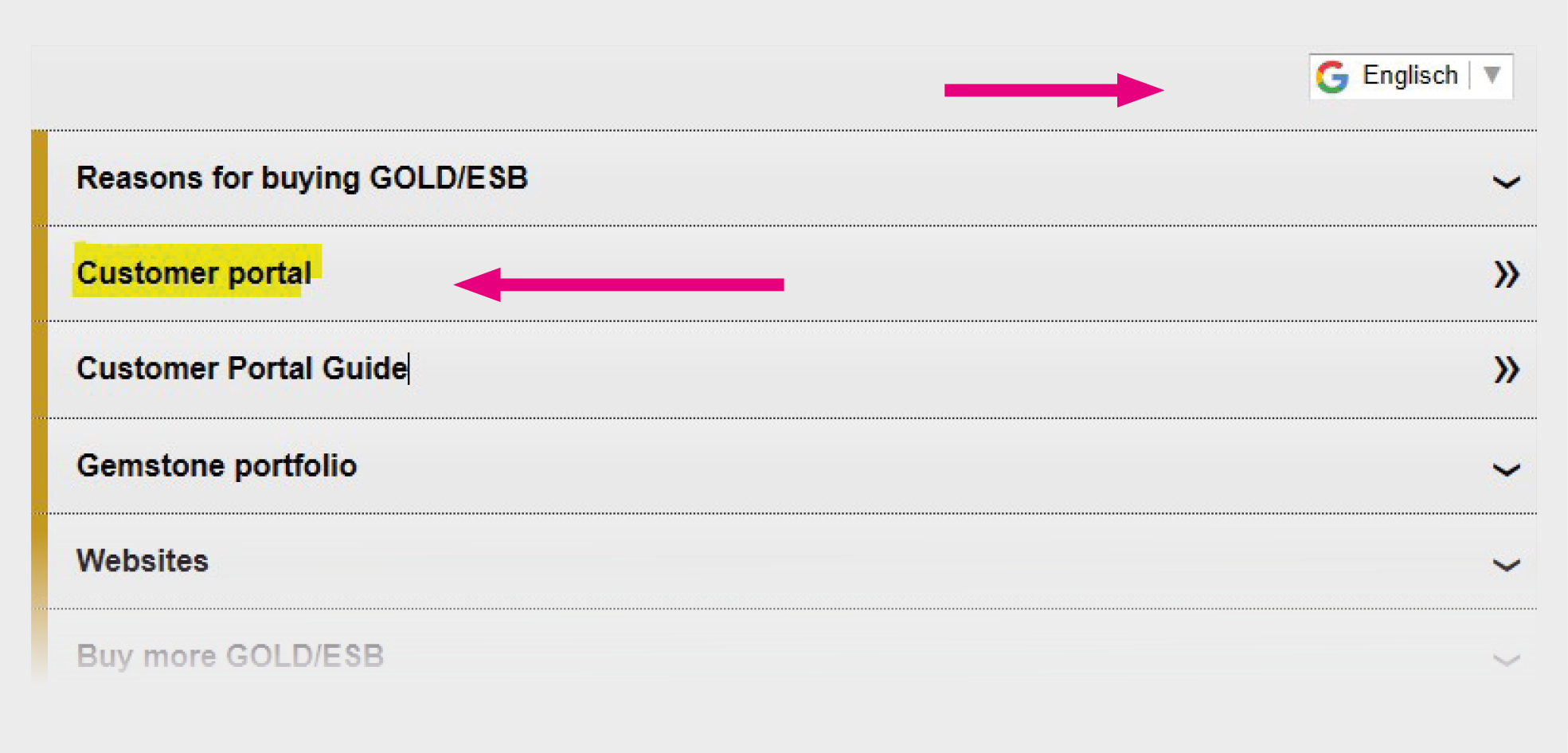
B.2. Open customer portal
A new window opens. Click on the second line “Customer portal” and select in the top right-hand corner the language of your choice.
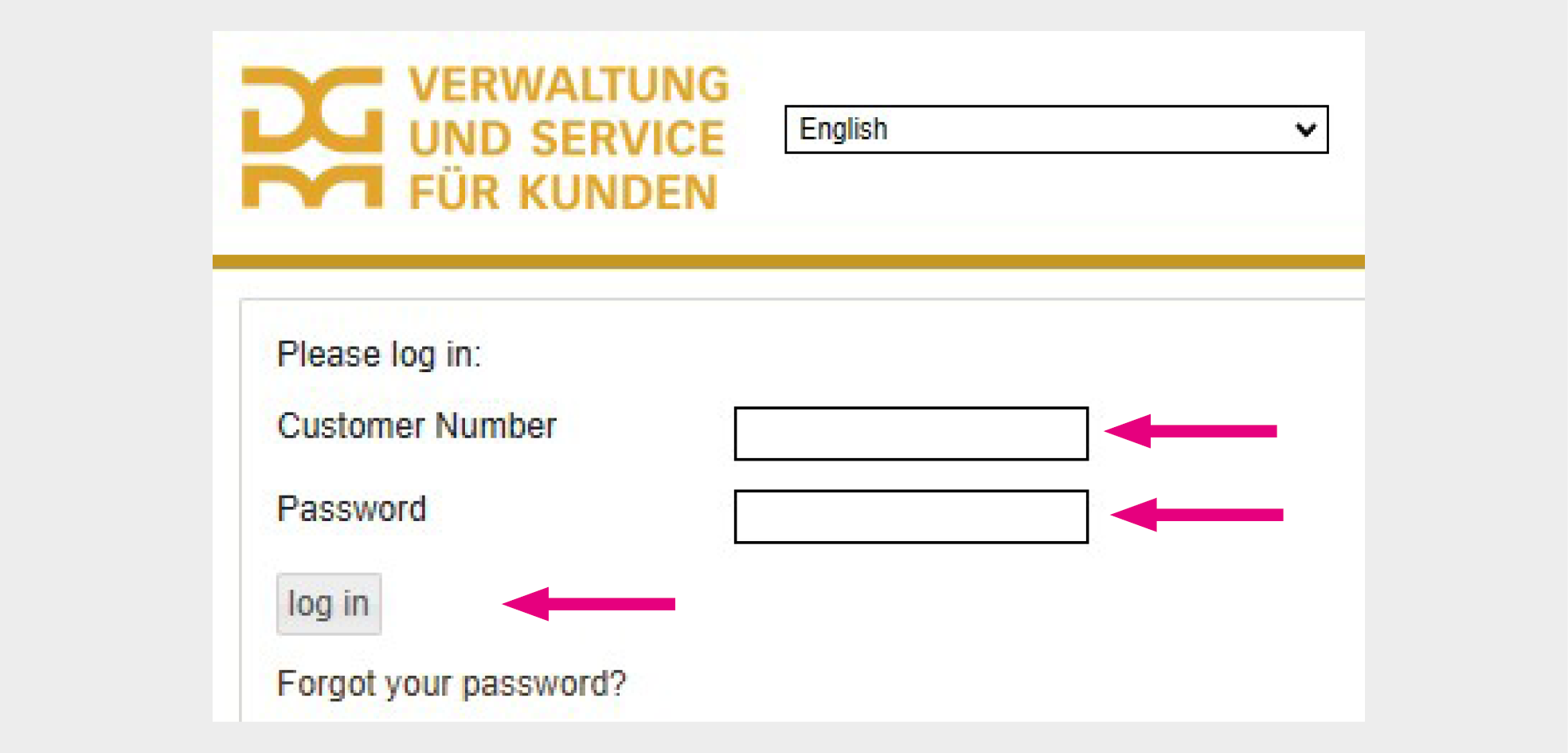
B.3. Enter your customer number and password
A new window opens. Enter your customer number (see point A.1.) and the password you have created (see point A.4.) and click on “log in”.
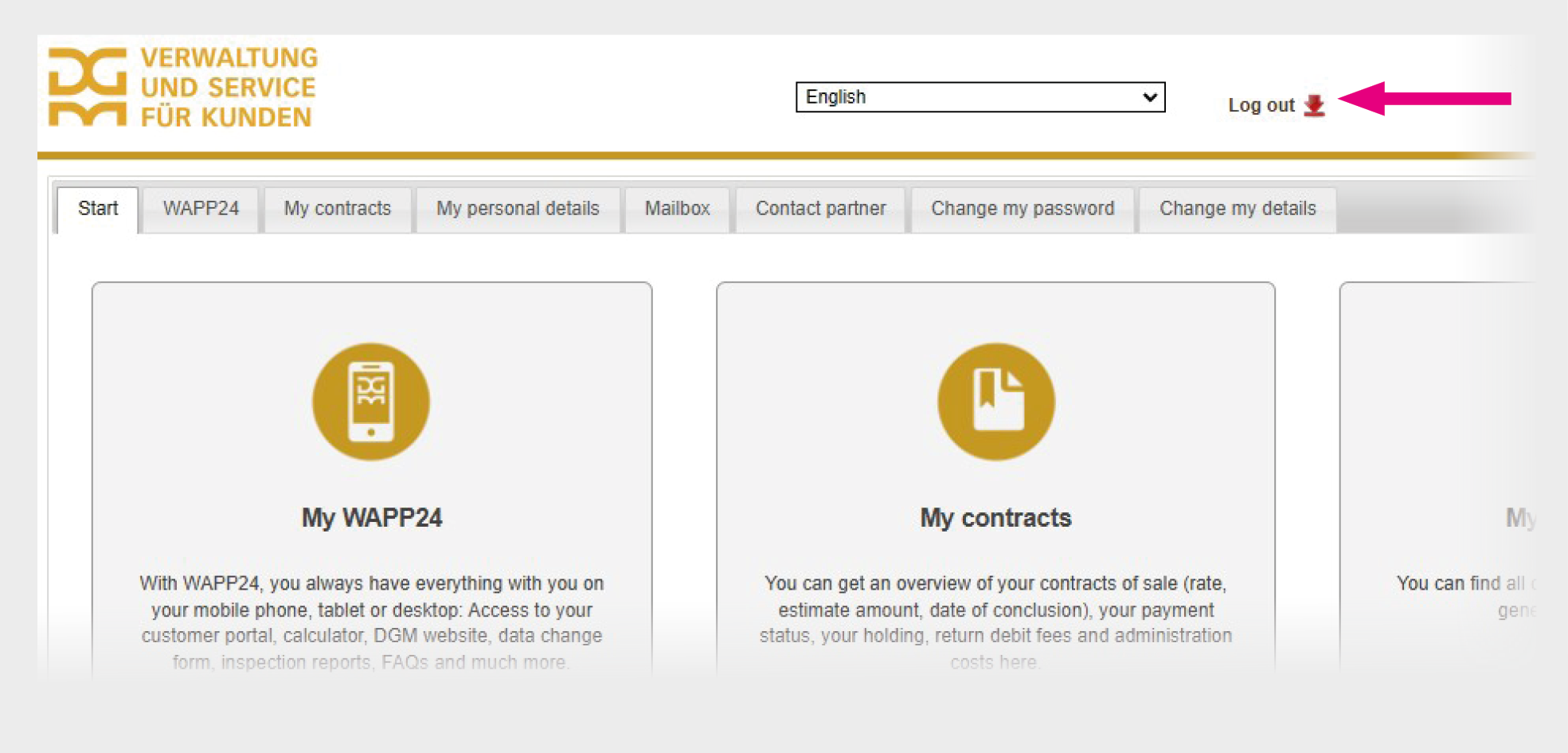
B.4. Internal customer portal
You are now in the internal area of the customer portal. To log out, click on the “Log out” button in the top right-hand corner.
C. Request new password in the customer portal
Note: To delete any search histories that have been saved in the background as cookies in connection with the customer portal, clear the history in your browser by pressing the F5 key or by clicking on “Clear History” in the top right-hand corner of the browser.
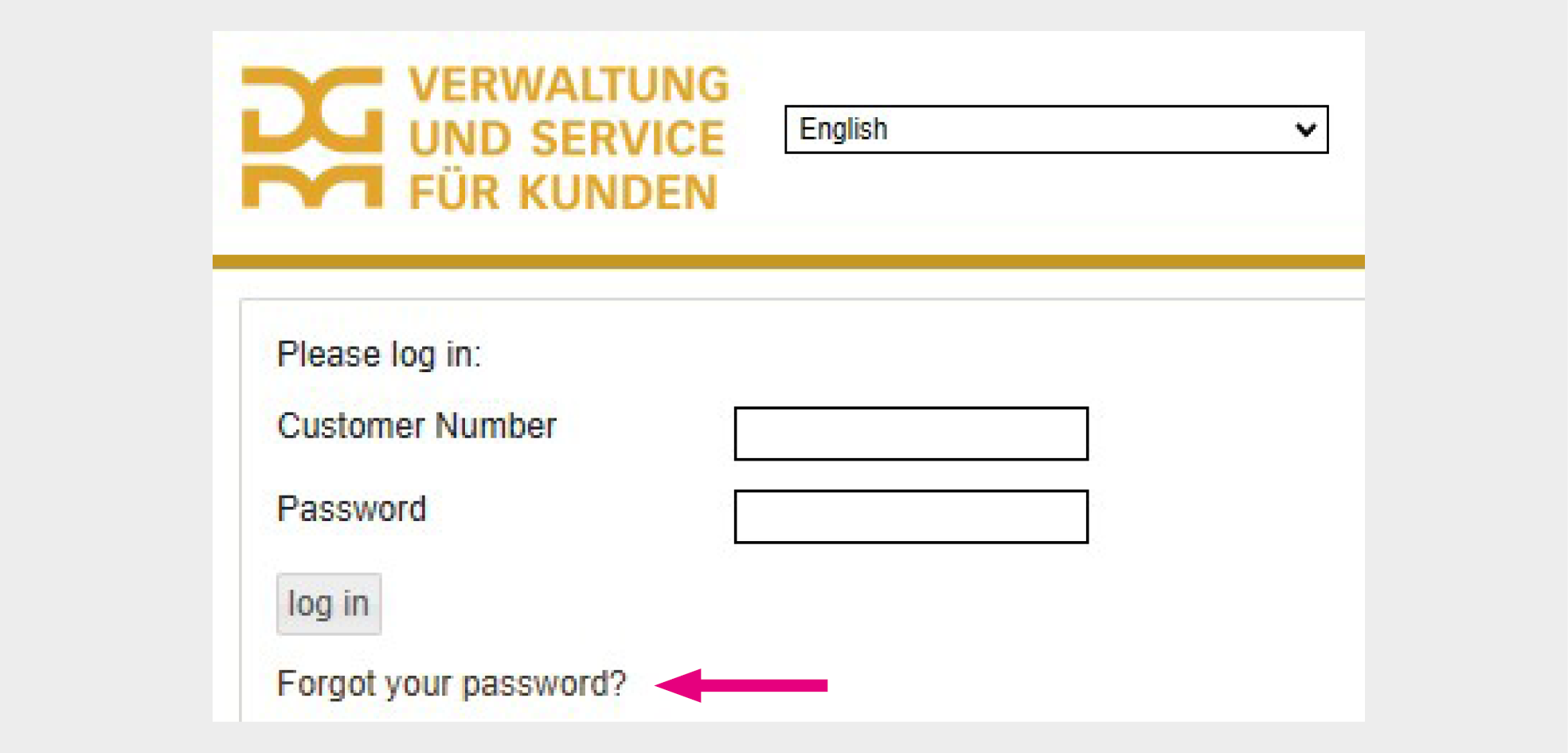
C.1.
Open the customer portal login area via your WAPP link or directly via the customer portal link. If you log in via the WAPP link, follow the same procedures as described in points B.1. to B.2. In the top right-hand corner, select the language of your choice.
Then click on “Forgot your password”.
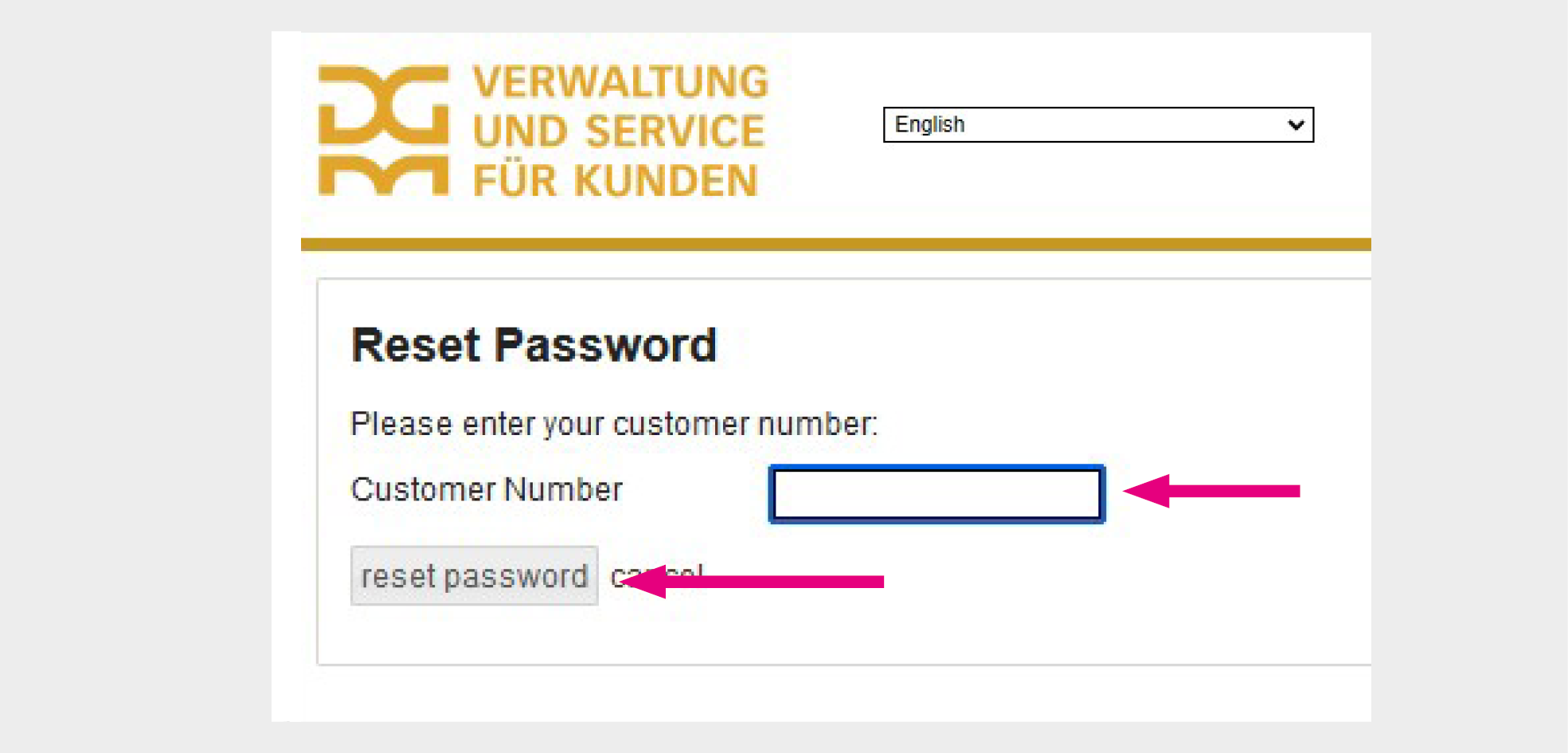
C.2.
A new window opens. Enter your customer number (see point A.1.) and click on “reset password”.
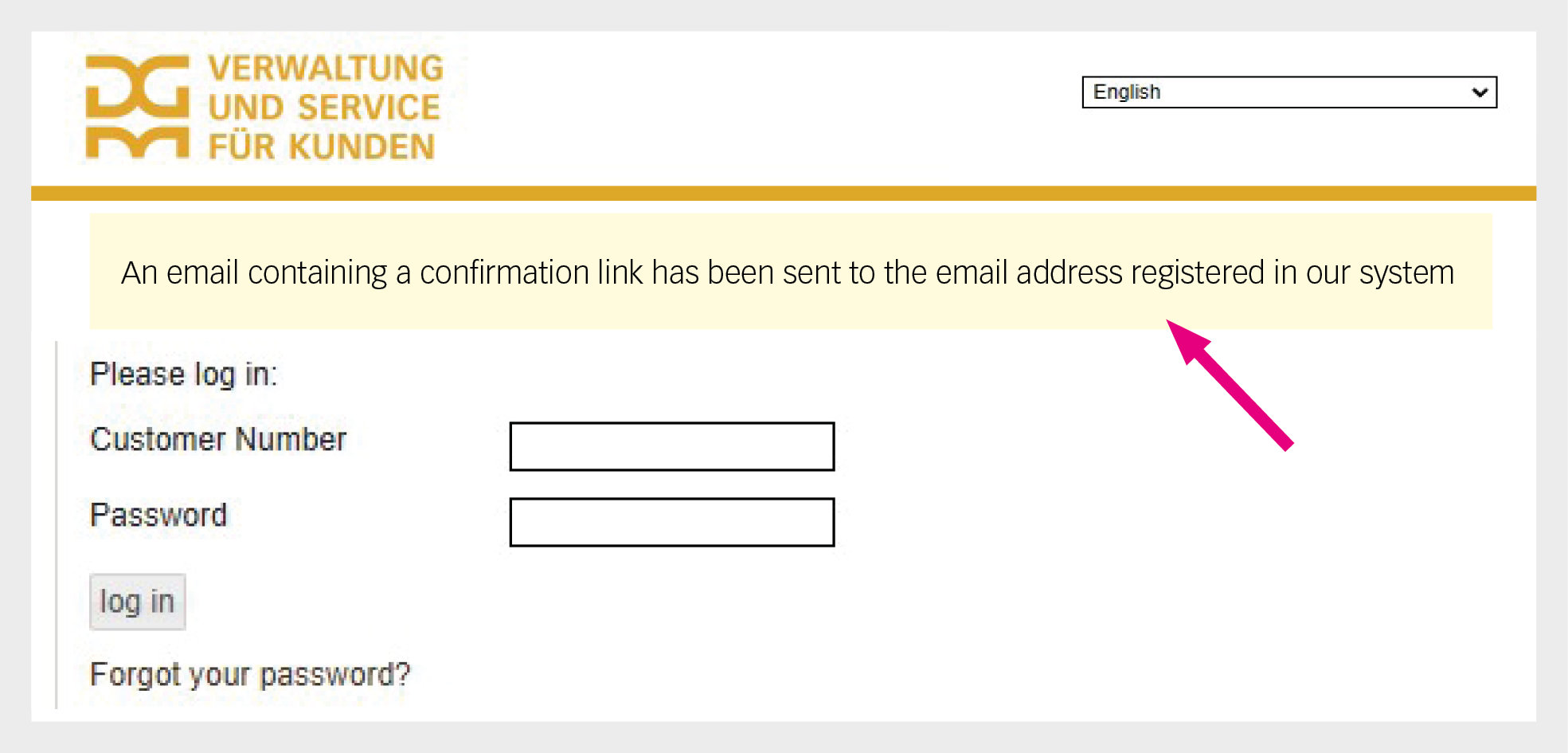
C.3.
A new window opens with the message: “An email containing a confirmation link has been sent to the email address registered in our system”.
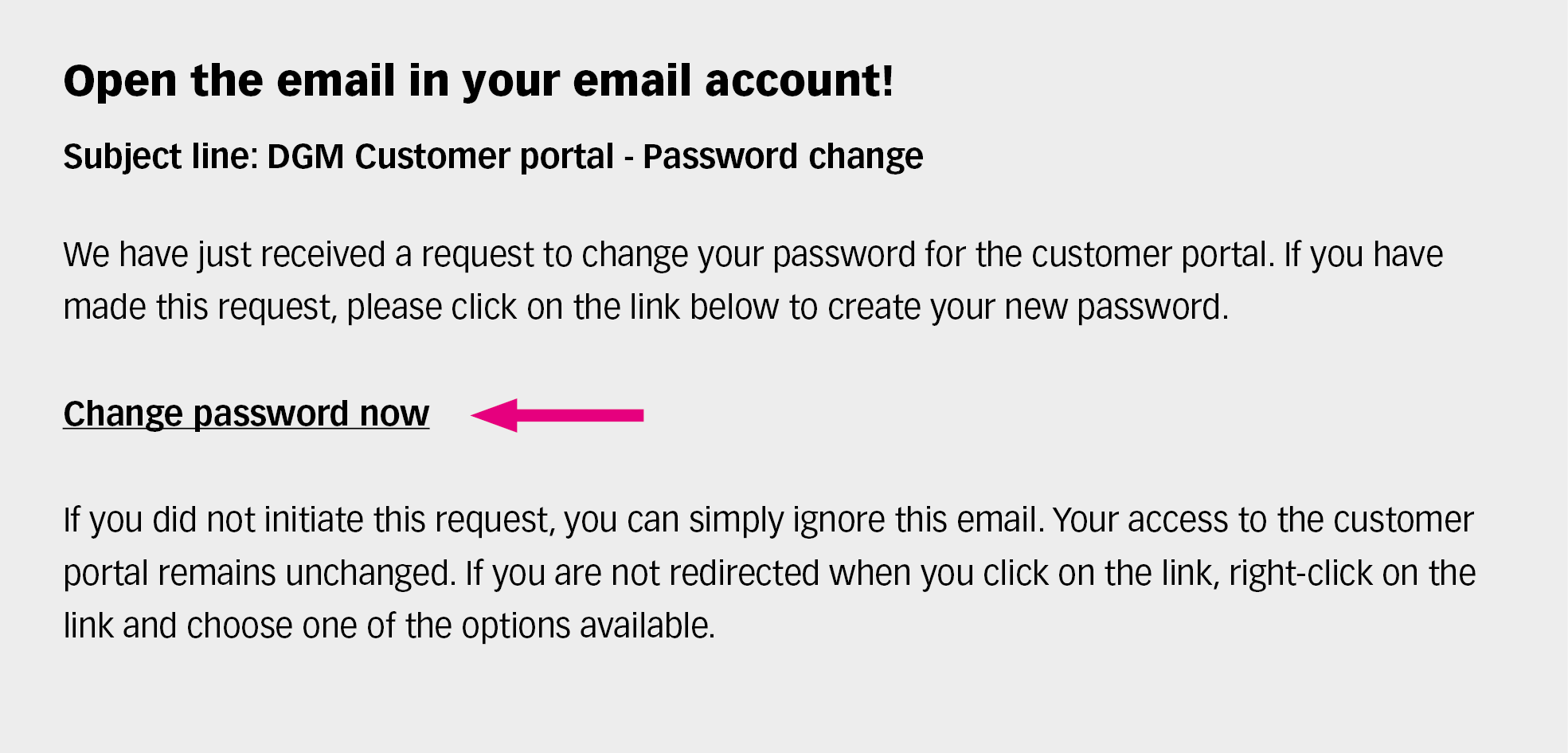
C.4.
Open your email account via the email address indicated in your contract and click on the received email. Click on the link “Change password now”.
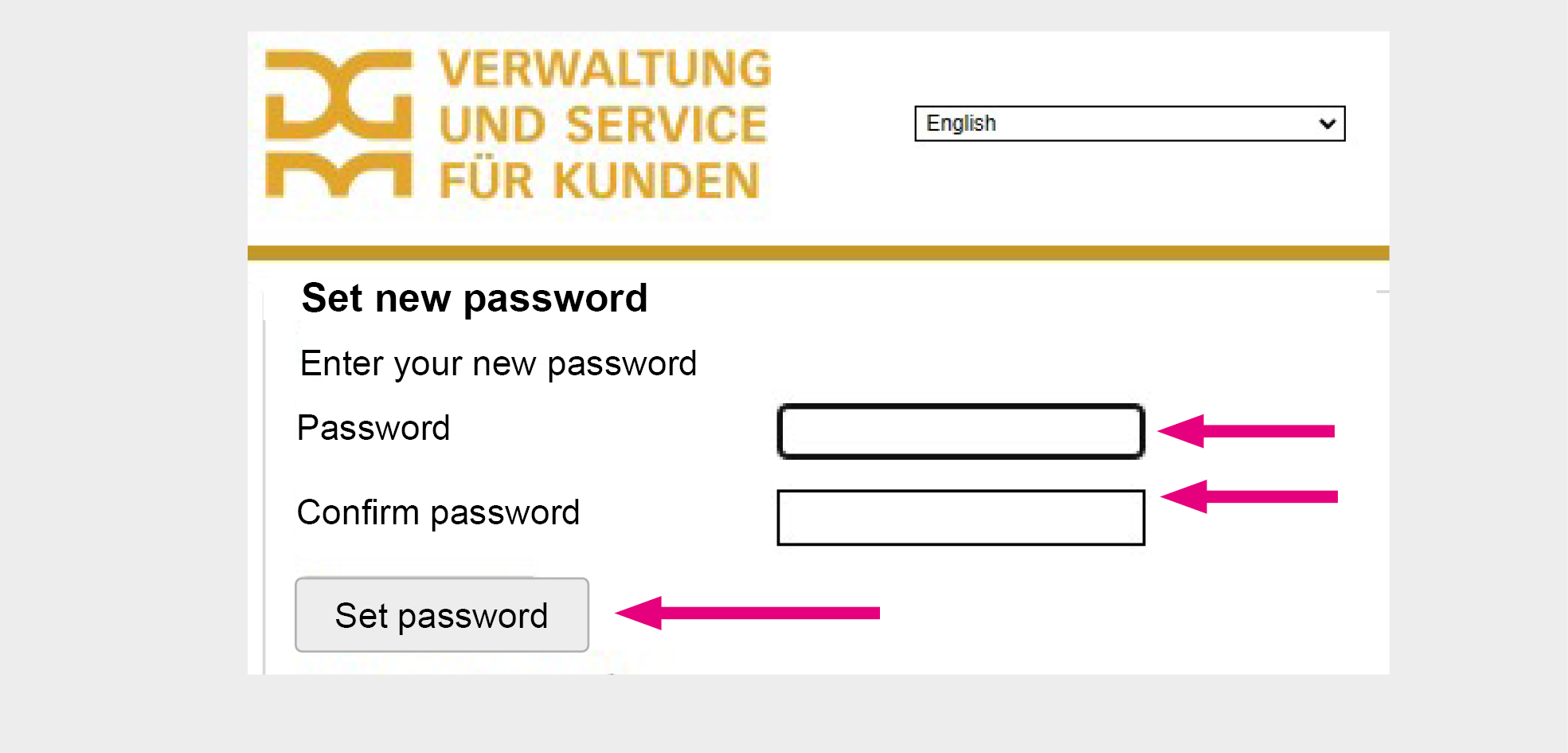
C.5.
A new page opens with two fields. In both fields, enter your new password. The new password must contain at least 8 characters, with upper and lower case letters, numbers and at least one symbol. Then click on “set password”. Save your new password in a secure folder.
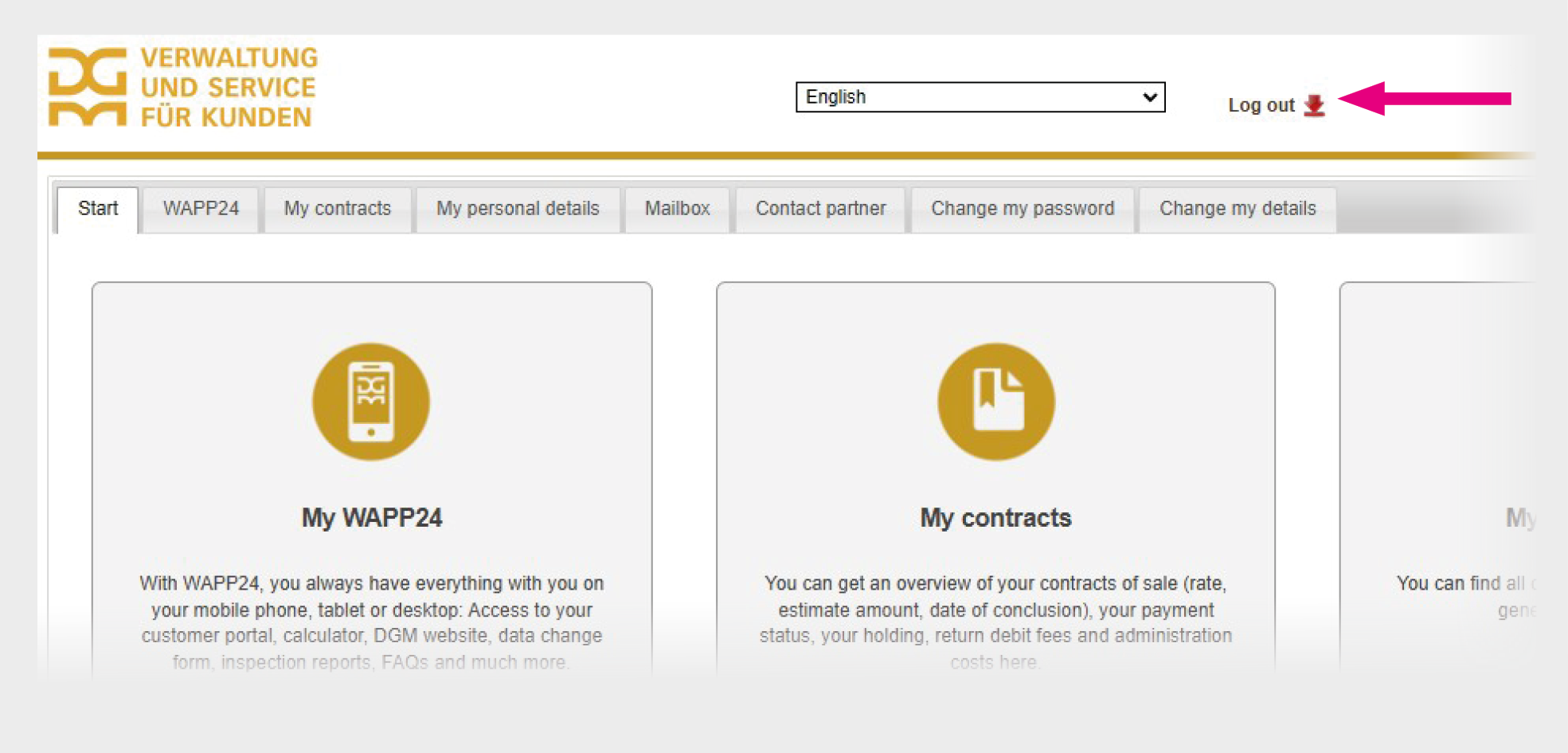
C.6.
You are now in the internal area of the customer portal. To log out, click on the “Log out” button in the top right-hand corner.
D. Technical support
If you encounter technical problems when logging in for the first time or when assigning a new password, please send us an email to info@dgm-vertrieb.de. Please always indicate your customer number and describe the problem. We will contact you immediately.